

Computer Storage & Digital Storage Devices - Walmart




















About Computer Storage & Digital Storage Devices - Walmart - Walmart.com
Computer storage helps you organize photos, project files, and backups across your setup. This guide helps you compare digital storage devices by capacity, connection, compatibility, and everyday use.
Your decision gets easier when you sort options by how you store files. A clear buying guide helps you compare external drives, SSDs, flash drives, and memory cards with less guesswork.
Choosing computer storage by device type
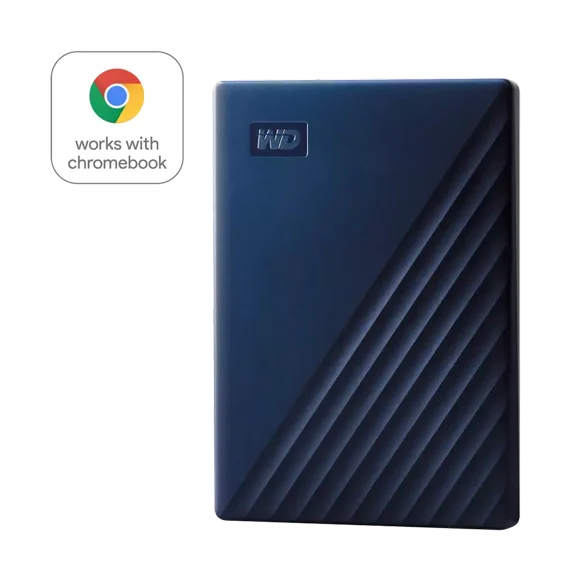
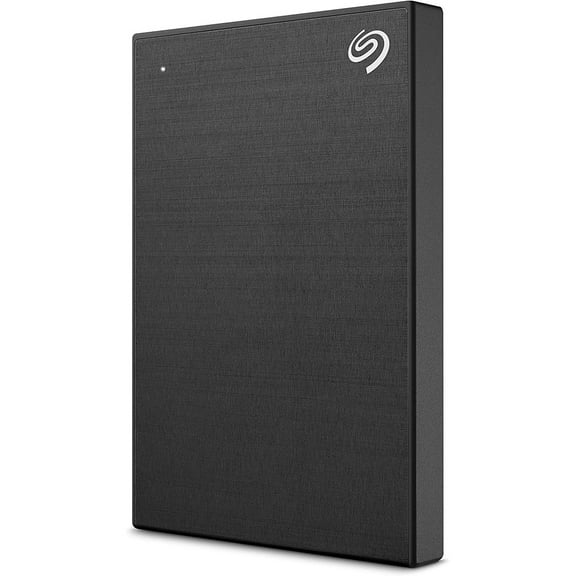
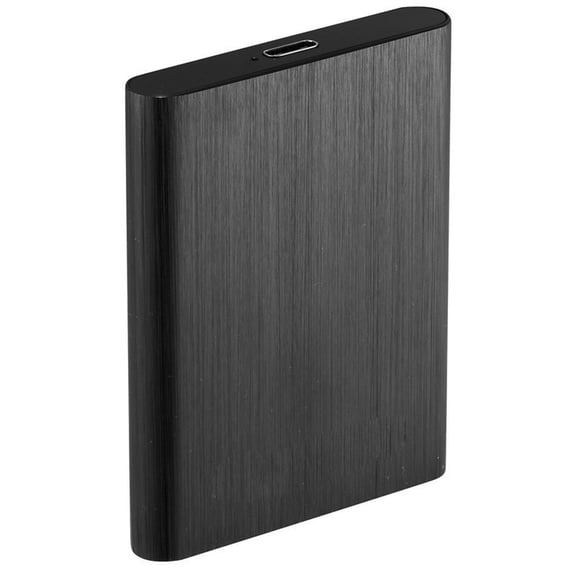
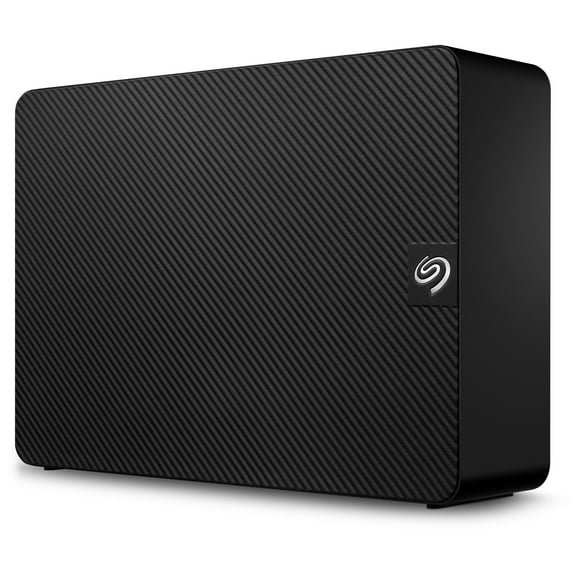
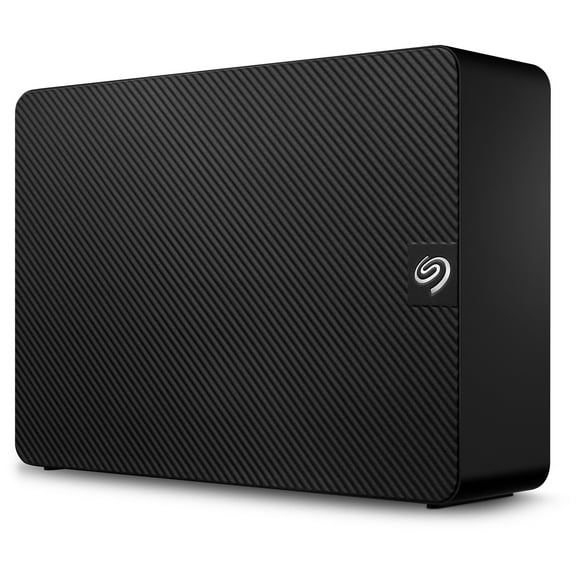
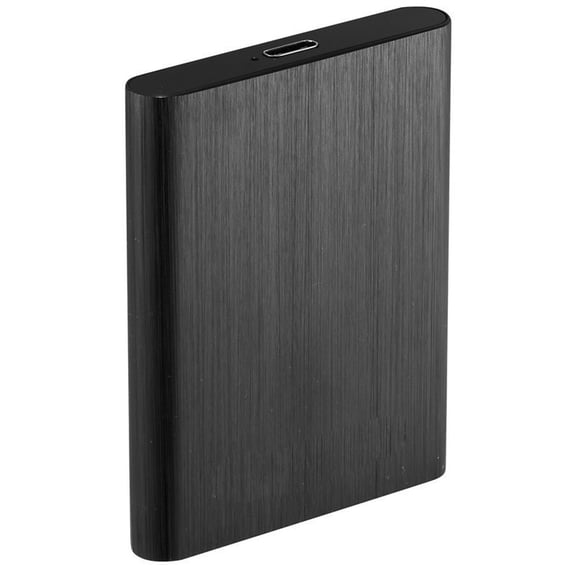
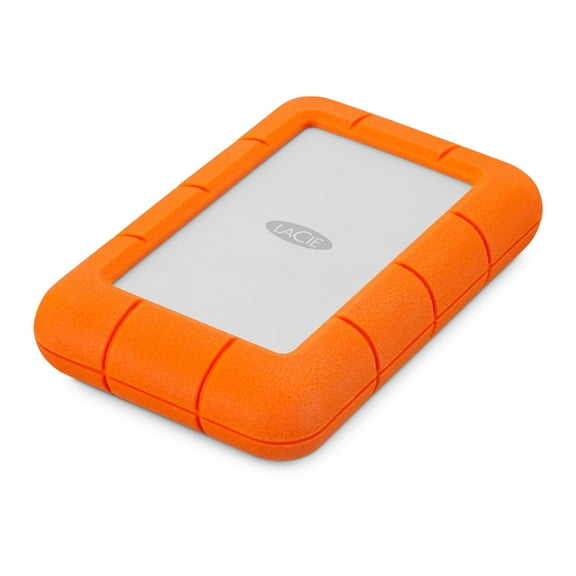
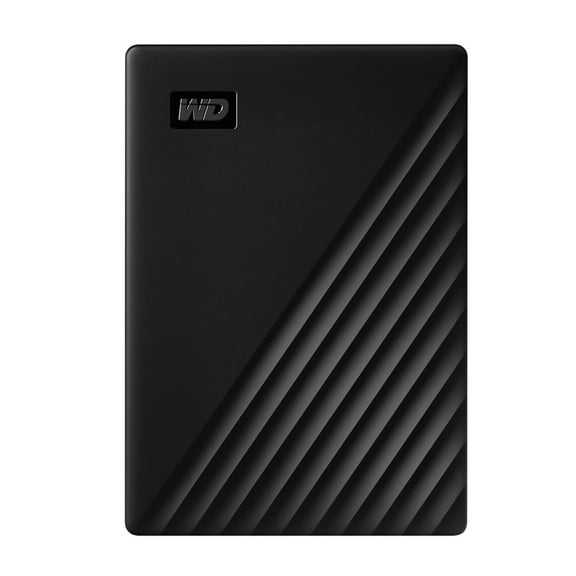
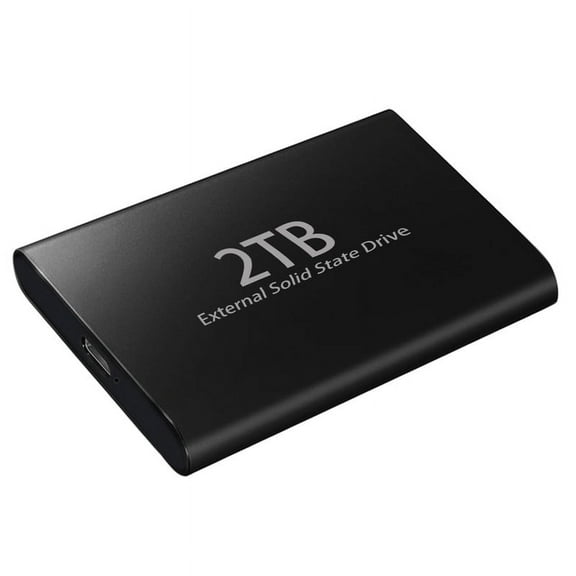
Start with device type because your format shapes speed, portability, and file size flexibility. External hard drives usually fit larger libraries, while SSDs support quicker transfers and shorter load times.
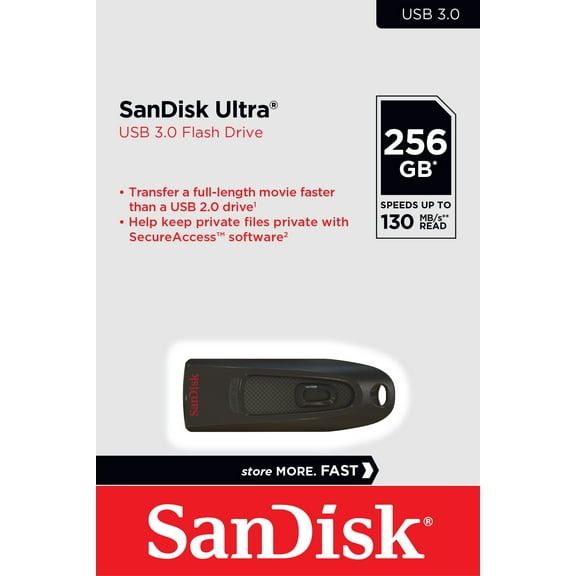
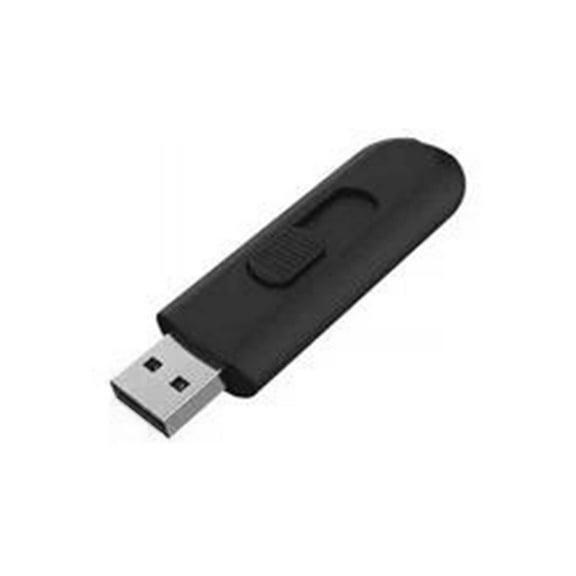
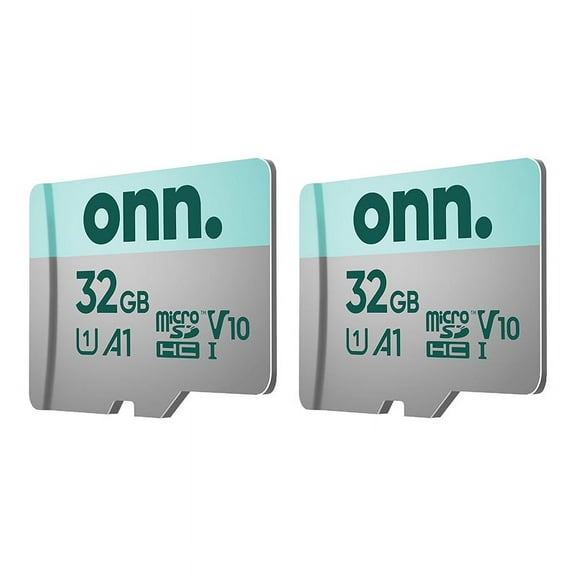
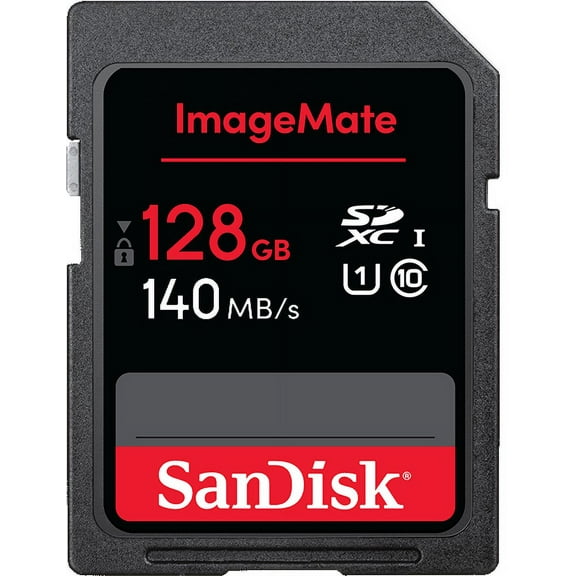
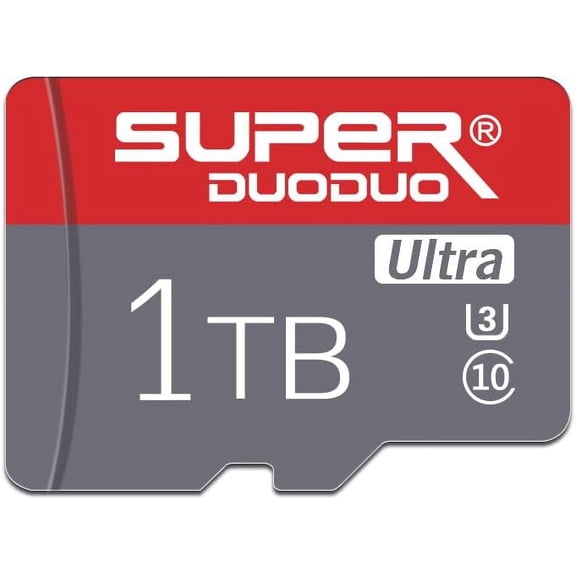
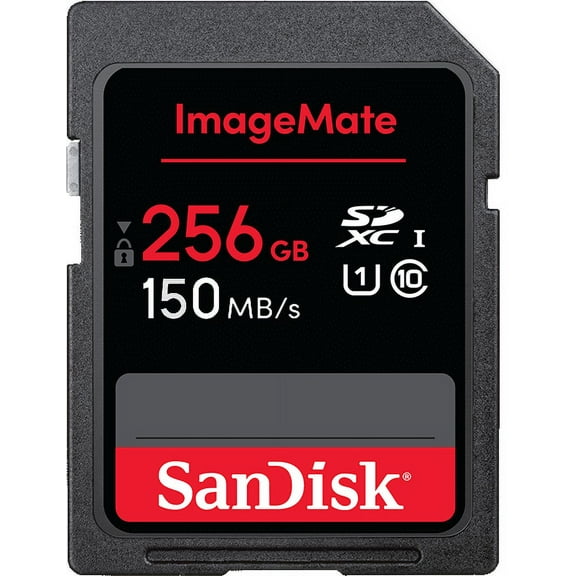
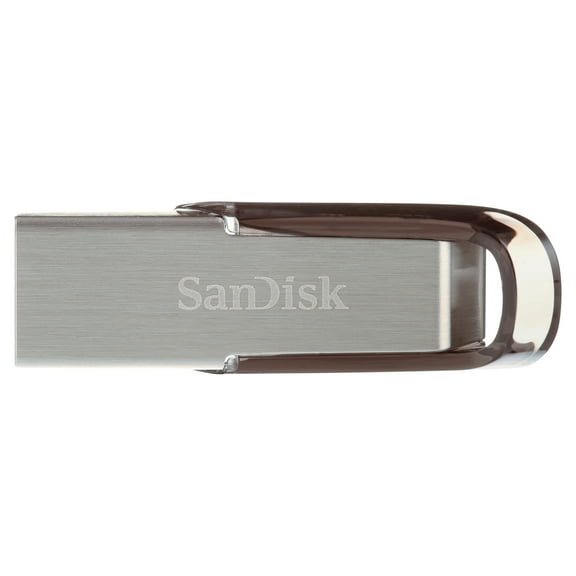
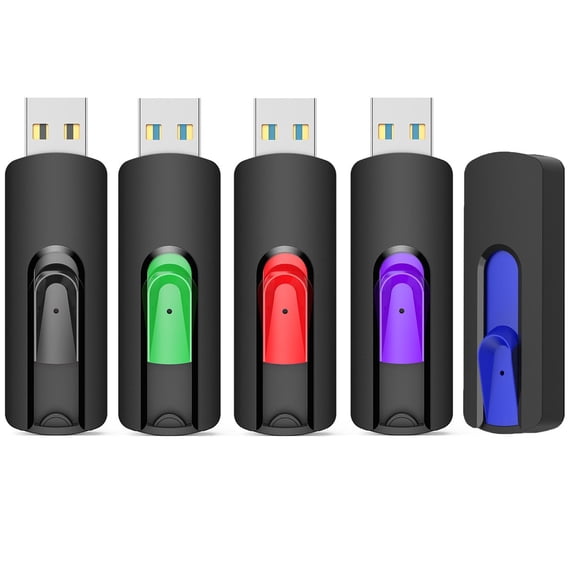
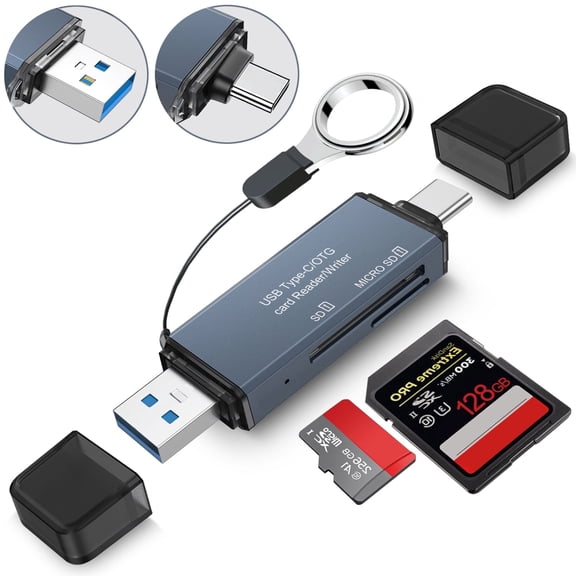
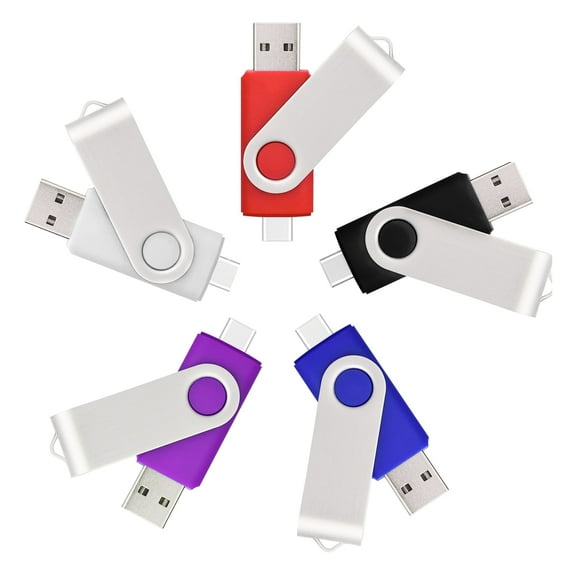
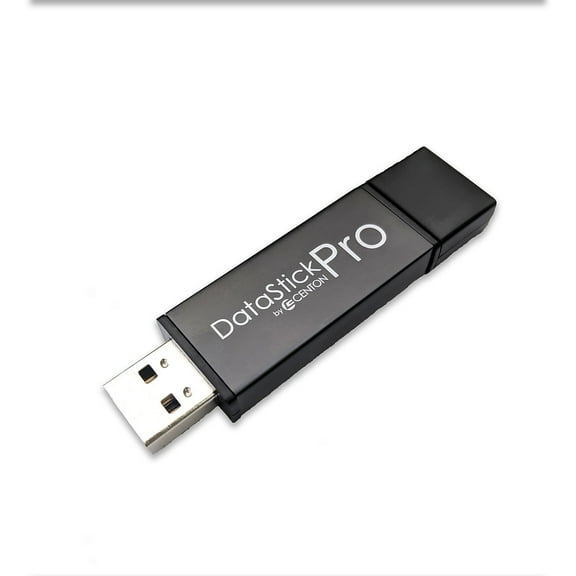
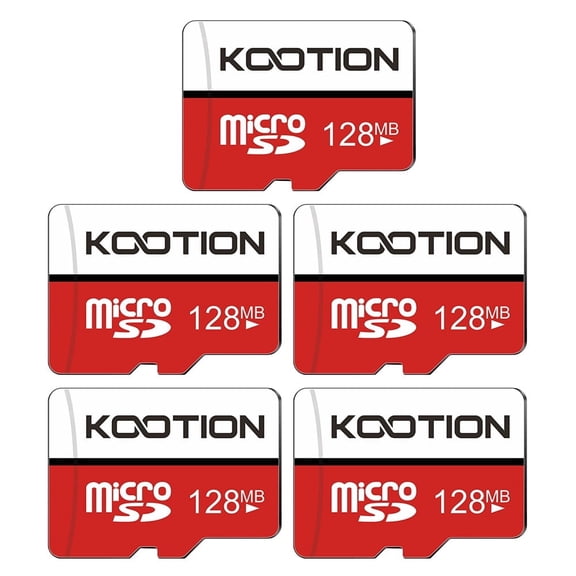
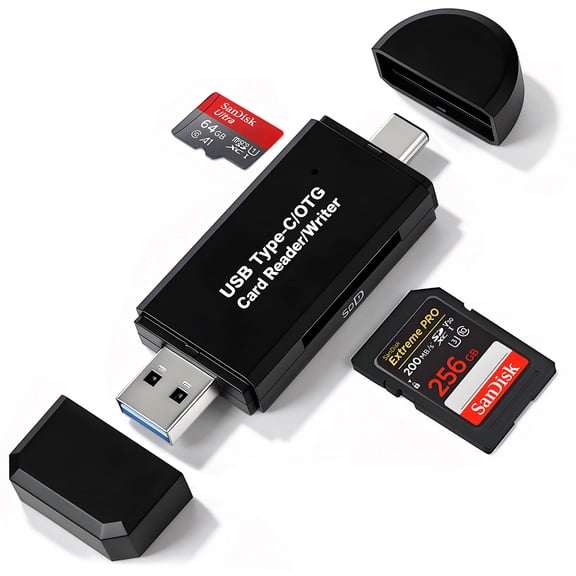
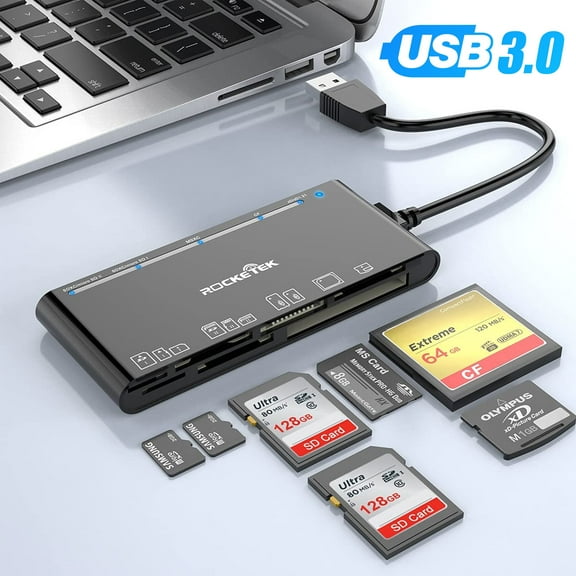
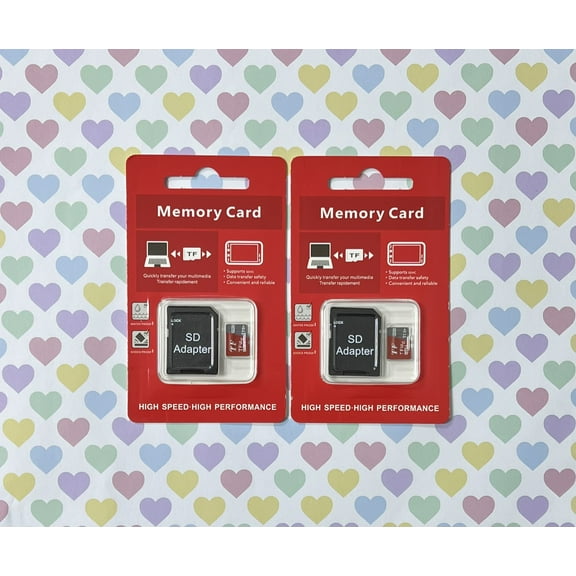
Smaller formats work well when your files travel with you during work, school, or commuting. USB flash drives fit pockets and keychains, while memory cards support cameras, tablets, and some phones.
Your storage routine can also guide the right format for daily use. Archives often fit an external drive, game files often fit an SSD, and camera media often fits a memory card.
- Your SSD choice can support faster file access and smoother loading for large projects.
- Your external hard drive can hold bigger backup folders and longer media libraries.
- Your USB flash drive can make file sharing simple between compatible laptops and desktops.
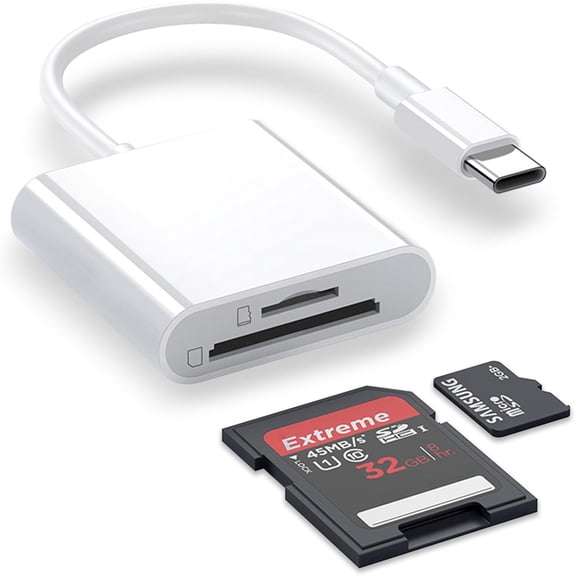
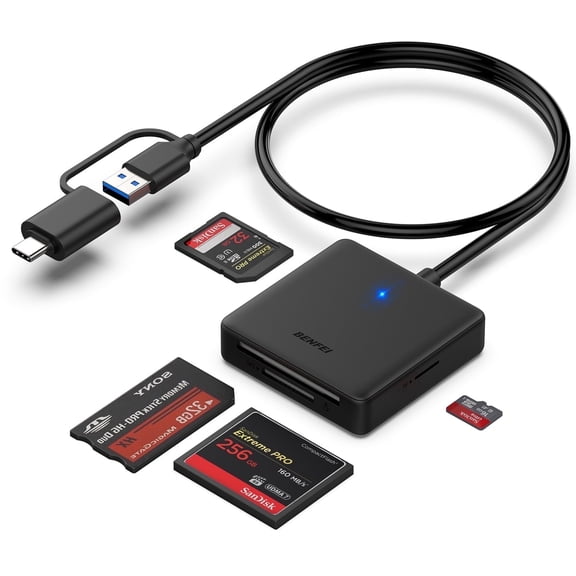
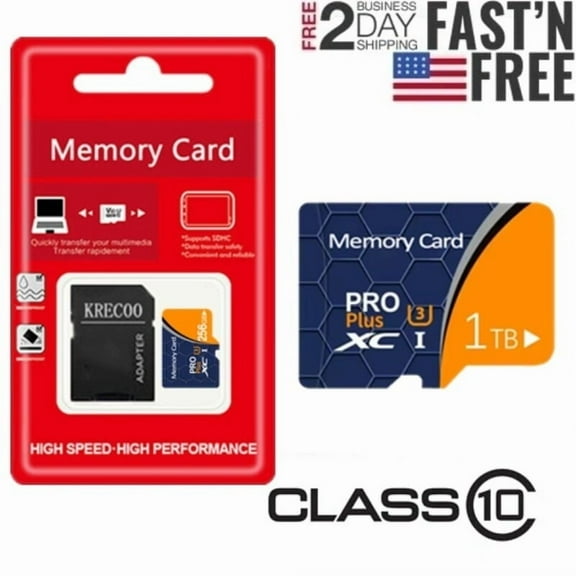
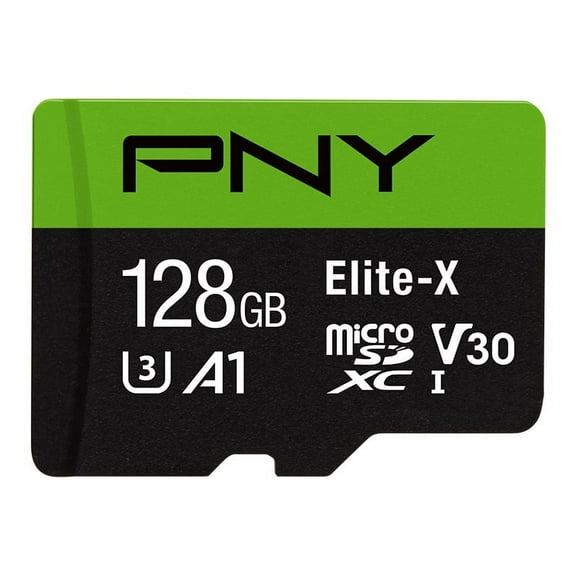
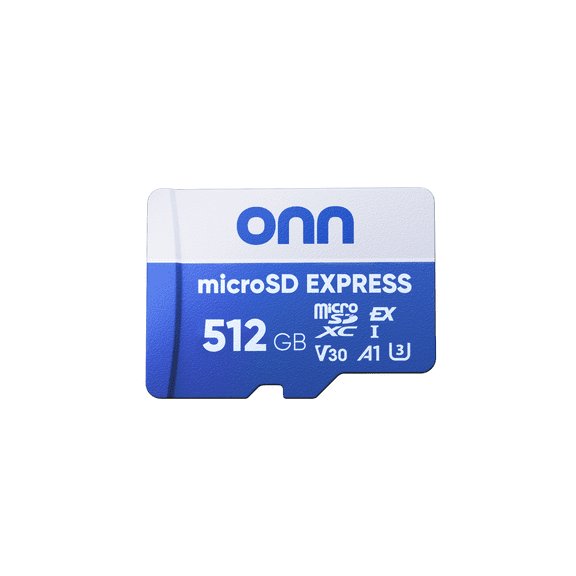
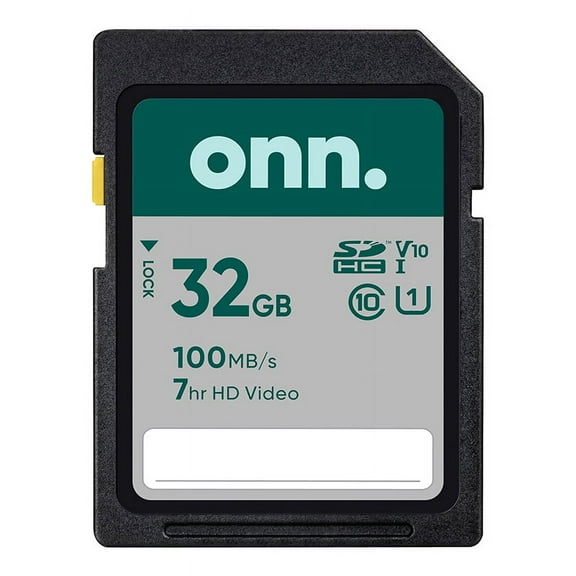
- Your memory card can add compact storage for cameras, drones, tablets, and supported phones.
How to choose capacity, from 128GB to 2 TB iPhone workflows
Consider your file types first, because capacity should match how much content you keep. Lighter needs like documents and casual photos may fit 128GB or 512GB without extra bulk.
Larger libraries call for more room when your setup includes video clips, game files, or raw photos. In those cases, 1TB and 2TB options can reduce constant file cleanup.
A 2 TB iPhone backup workflow may matter if your phone holds years of photos and videos. Extra capacity can give your exported mobile files more room in one place.
Future growth also matters when your folders keep expanding every month. A larger computer data storage device can keep your setup simpler as your library grows.
Checking usb2 to usb3, USB-C, Thunderbolt, and SATA connections
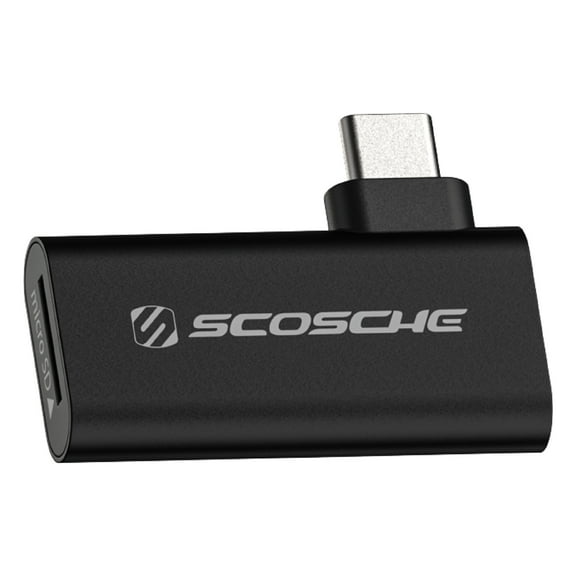
Check your ports before anything else, because the right connector prevents setup frustration. A USB-C laptop needs matching storage or an adapter that fits your routine.
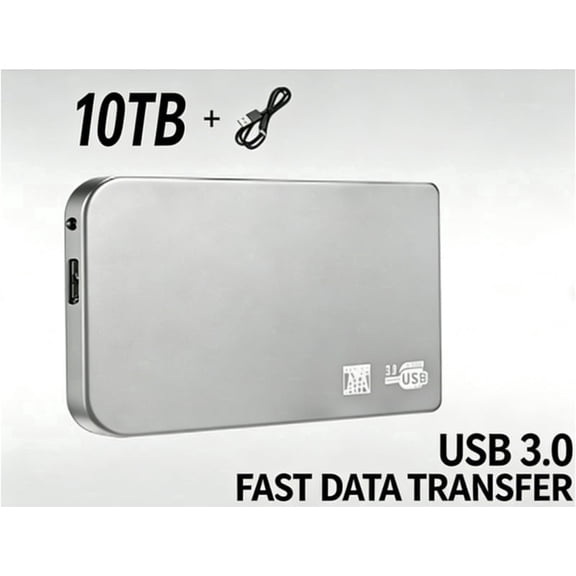
Transfer speed matters most when your folders include large videos, installs, or photo batches. Comparing usb2 to usb3 options helps you understand why USB 3.0 feels quicker during bigger file moves.
Modern laptops and tablets often pair well with USB-C or Thunderbolt connections for current setups. Desktop upgrades may call for SATA support when your drive installs inside a compatible bay.
Cable style matters too when your files move across several devices each week. A matching connector can make everyday transfers smoother and keep your workflow more consistent.
How to compare compatibility for PC, Mac, iPhone, and Android
Compatibility deserves a close look because your devices need the right ports and file support. PC data storage devices may differ from options designed around Mac formatting or phone connections.
Cross-device use works better when your storage matches your operating system and connector type. Checking file system details, setup steps, and included cables can prevent extra work later.
Phone and tablet storage needs can be more specific than laptop or desktop needs. Your setup may require USB-C, Lightning-compatible accessories, or app-based file access for mobile transfers.
Portability also changes your choice when you carry files between home, work, and class. A smaller drive can fit bags and desks easily, while a larger drive may stay near your main computer.
Comparing Toshiba and other digital storage devices
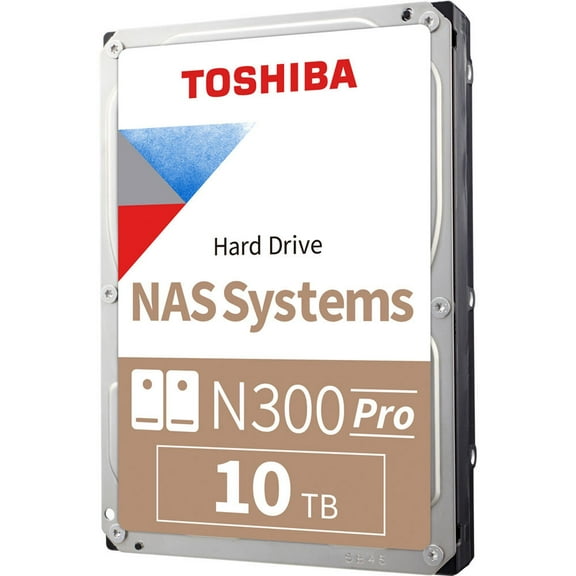
Brand comparison helps when you want a faster way to sort formats, capacities, and connectors. Looking at Toshiba and other digital storage devices can help you narrow choices by specs that fit your setup.
Focus on interface support, available sizes, and the files you move most often. Those details help you compare storage devices for computers without relying on broad brand assumptions.
Useful choices usually come from matching drive type, capacity, interface, and platform support together. That approach helps your storage computer setup handle backups, transfers, and everyday organization with fewer compromises.
What to look for in computer storage for everyday use
Use cases can sharpen your decision when several formats seem similar at first glance. Your home office may need backup space, while your travel setup may need a lighter drive.
Photo libraries often need room for image folders, camera imports, and edited copies in one place. Video projects usually need quicker transfers, which is why many shoppers compare SSD options first.
School and work files often fit well on compact drives that move easily between shared devices. That flexibility makes some digital storage devices useful for presentations, assignments, and portable document libraries.
Gaming setups can benefit from extra space for installs, patches, and saved files across systems. Matching the right storage devices for computers to your routine helps you keep files accessible and organized.
Your choice becomes clearer when you compare device type, capacity, interface, and compatibility together. The right computer storage setup gives your files dependable space, easier transfers, and cleaner organization every day.